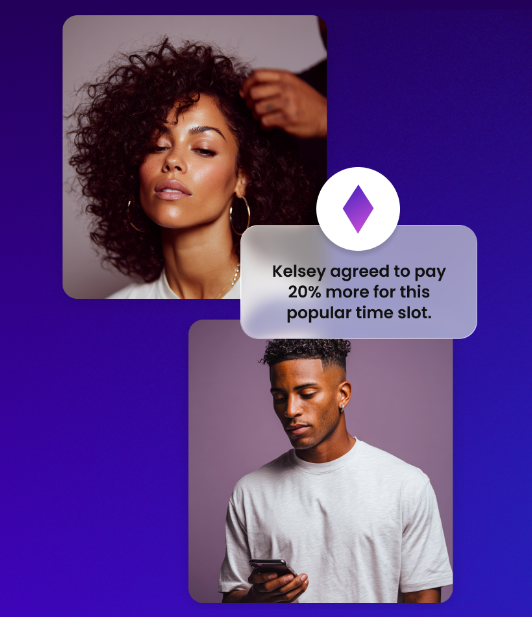
Smart Pricing is one of the most powerful revenue tools on StyleSeat. It automatically identifies your most popular time slots and raises prices (based off your settings) when demand is high. Clients booking these premium times pay a little more, and you earn extra income without lifting a finger. On average, professionals using Smart Pricing earn an additional $7,200 per year.
This demand-driven approach works for new and established Pros who want to improve profitability and increase their average booking value using automated business growth tools.
Smart Pricing supports your business by:
- Providing demand-based pricing
- Raising rates during high-traffic periods
- Filling slower days with competitive pricing
- Offering pricing transparency to clients
- Helping you earn more without raising your base prices
How Smart Pricing Works
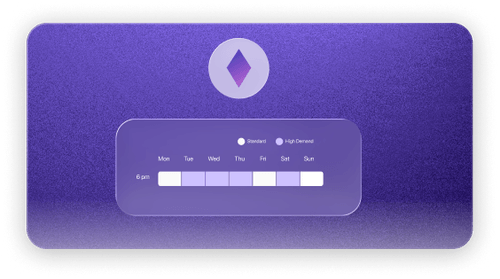
StyleSeat's data science analyzes your booking patterns, prices, and client behavior to identify when demand exceeds supply. When a time slot is in high demand but your prices do not reflect that value, Smart Pricing automatically adjusts.
- StyleSeat identifies your most popular booking times
- Prices increase by up to 50% for those time slots (rates can be customized)
- Clients see the adjusted price clearly labeled as a "high-demand" time
- You receive the higher payment automatically
- The feature runs continuously without any action from you
- Clients always see their final price before booking. The high-demand label helps them understand why the price is higher, and many clients are willing to pay more for convenient times.
Setting Up Smart Pricing
Smart Pricing requires payments to be enabled on your account.
- Open the StyleSeat app and tap More
- Tap Payments and Policies
- Tap Smart Pricing
- Toggle the feature ON
Review the default settings or customize as needed
Once enabled, Smart Pricing begins analyzing your booking data immediately. It may take a few days to identify patterns if you are new to the platform.
Customization Options
You have control over how Smart Pricing applies to your business.
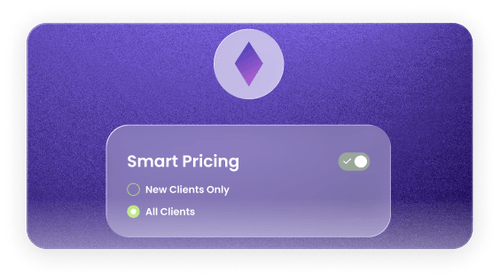
Apply to new clients only:
If you want to protect your regulars from price increases, you can set Smart Pricing to only affect new client bookings. Existing clients see your standard prices regardless of the time slot.
Skip the upcharge for VIPs:
Mark specific clients as VIPs in their profile, and they will never see Smart Pricing adjustments. This is useful for your most loyal clients or friends and family.
Customize by service:
You can enable or disable Smart Pricing for specific services. For example, you might enable it for your most popular services while keeping standard pricing on others.
Understanding the Fee Structure
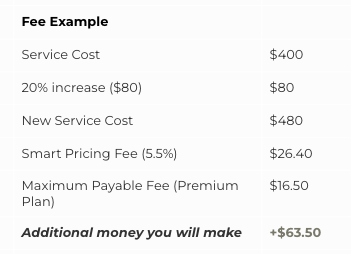
Smart Pricing appointments include a small fee that StyleSeat deducts before your payout.
Fee details:
- 5.5% fee on the Smart Pricing portion of the appointment
- Maximum fee is $16.50 per appointment
Fee example:
Automatic Tipping With Smart Pricing
Smart Pricing appointments include an automatic tip feature for client convenience.
How it works:
- Client books a Smart Pricing appointment
- Appointment is completed
- One hour after the appointment ends, the card on file is charged automatically
- A default 20% tip is included in the charge
- Client receives a text message with the option to modify the tip amount
- Clients can adjust their tip up or down after receiving the notification. This feature ensures you receive tips consistently while giving clients flexibility.
Maximize Your Earnings with Smart Pricing

Smart Pricing is powerful on its own, but a few simple habits can help you get even more out of it:
Keep your calendar open: The more consistent your availability, the better Smart Pricing can identify and optimize your peak times.
Watch your demand insights: Use your StyleSeat dashboard to spot your most profitable days and hours.
Book more, earn more: Smart Pricing learns from your unique booking patterns — the more data it has, the smarter it gets.
Test and adjust: Start with the recommended settings, then tweak your upcharge rate based on how your clients respond.
With these small steps, Smart Pricing becomes a personalized earnings tool that works harder for you every week.
Pro Tips To Get More Out Of Smart Pricing
Tip 1: Keep Smart Pricing enabled even if individual appointments seem small. A $15 increase here and $20 there adds up to thousands of dollars over the course of a year. The extra revenue requires zero additional effort from you.

Tip 2: Use the VIP feature strategically. You can mark your longest-standing clients as VIPs so they never see price increases, which builds loyalty. Let new clients pay premium prices for your best times.
Tip 3: Combine Smart Pricing with accurate availability. If you only show a few open slots, those slots become high-demand by default. Keep your calendar updated so Smart Pricing can identify genuine demand patterns.
Frequently Asked Questions
Will Smart Pricing drive away clients?
Most clients understand that popular times cost more. The price increase is clearly labeled, and clients who want cheaper rates can simply book less popular times. In practice, Smart Pricing does not reduce overall bookings.
Can I see which appointments have Smart Pricing?
Yes. In your calendar, Smart Pricing appointments are labeled so you can see which bookings include the premium pricing.
What if a client complains about the price?
You can explain that StyleSeat automatically adjusts prices for high-demand times, similar to how airlines or rideshare services work. If needed, you can mark that client as a VIP for future bookings.
Does Smart Pricing affect my reviews?
No. Clients who book Smart Pricing appointments leave reviews at the same rate as other clients, and their satisfaction levels are comparable. The transparent pricing keeps expectations clear.
Can I turn off Smart Pricing for a specific time?
You cannot turn it off for individual time slots, but you can disable it entirely or customize which services it applies to. If you need standard pricing for a specific appointment, consider booking that client manually outside of Smart Pricing hours.
Was this article helpful?
That’s Great!
Thank you for your feedback
Sorry! We couldn't be helpful
Thank you for your feedback
Feedback sent
We appreciate your effort and will try to fix the article
Modified on Wed, Dec 3, 2025 at 4:15 PM